Speed up your PC - Clipboard Manager - Bookmark Manager
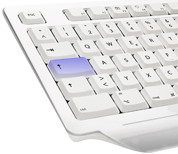
 Outertech is a German software development company incorporated in 1999. Our award winning PC speed maximizer Cacheman (Cache manager) has been designed to speed up applications and games, fix lag, slow downs, and stuttering caused by background tasks like anti-virus programs. Clipboard History is a free Clipboard Manager that gives you access to texts copied to Clipboard by pressing the usually idle Capslock key. Linkman is a bookmark manager that integrates with Firefox, Chrome, Internet Explorer, and the Opera browser.
Linkman allows you to manage bookmarks across different browsers and computers. The free text editor GetDiz is a Notepad replacement that offers unique features while maintaining incredible speed, ease of use, stability, and small size. With StartEd you can change startup programs in Windows 10, 8.x and 7. A color coded explanation will aid you in removing unwanted applications for a faster computer startup. Batchrun helps you to create a batch file using a graphical interface. You can subscribe to our newsletter, or follow us on X for the latest updates.
Speed up your PC
 |
Have you been trying to fix computer slow downs with frequent rebooting, or even by completely reinstalling the operating system? Instead of reinstalling, consider a free Cacheman trial for a PC speed up boost in few minutes. Cacheman is easy enough for novices to use, yet powerful enough for advanced users. Plus it offers an automatic backup feature to keep you on the safe side. Cacheman is designed for speeding up Windows 10, 8.x and 7. Cacheman is available in English, German, French, Spanish, Japanese and 14 other languages. |
 |
Clipboard Manager
 |
Remember that text that was on the Clipboard twenty minutes ago, but was gone when you needed it? With Clipboard History, a Windows Clipboard manager, you can access up to twenty texts previously copied to the Clipboard, using the usually idle Caps Lock key, a tray icon, or a hotkey of your choice, which will work in every Windows application. When the key is pressed, a menu of saved texts will be shown. Select a text from this menu with the keyboard or with your mouse and it will be pasted to the current application. |
 |
| Clipboard History Lite (free) | Clipboard History Pro ($24.95) | |
|---|---|---|
| licensing | no restrictions including commercial usage | no restrictions including commercial usage |
| paste menu works in every application |  |
|
| optional cloud synchronization |  |
support for Dropbox, Google Drive, OneDrive, and many others |
| archive (permanent database) | |
|
| language support | western/latin languages | all languages (Unicode) |
| Sticky categories (sub menus) | |
|
| Rich Text Format support | |
|
| HTML -> RTF auto conversion | |
|
| optional portable version | |
|
| optional AES encryption | |
|
| history depth | 2..20 | 2..100 |
| archive depth (includes history) | 0 | unlimited |
| permanent text clips (stickies) | 2..20 | unlimited |
| data format | Registry Text | JSON |
| search | |
|
Bookmark Manager
 |
Linkman (short for Link Manager) is a complete bookmark manager that efficiently organizes large numbers of links. Linkman integrates with Firefox, Internet Explorer, Google Chrome, and Opera browsers. Support to synchronize Bookmarks between browsers and among computers is also available. With a screenshot-based tutorial, an introduction video, and a comprehensive PDF manual, getting started has never been easier! |
 |
| Linkman Lite (free) | Linkman Pro ($24.95) | |
|---|---|---|
| licensing | private, non commercial | no restrictions |
| number of bookmarks | 2 x 5,000 | unlimited |
| data format | XML | XML |
| browser support | Firefox, Internet Explorer, Google Chrome, Opera, 5 other browsers | Firefox, Internet Explorer, Google Chrome, Opera, 7 other browsers |
| diary feature | |
|
| database history backup depth | 2 | 9 |
| synchronization support | multiple browsers, one computer | multiple browsers, multiple computers |
| search features | search, query | search, query, search & replace, favorite searches list, keyword list |
| web icons | |
|
| additional keyword features | |
keyword list, add keyword to multiple bookmarks, replace keywords |
| URL functions | retrieve keywords, description | retrieve keywords, description, missing names, meta tags, web icons; check URLs for dead links, intelligent (only major) content changes, and page movements |
| import formats | > 7 | > 9 |
| html/xml export | static html pages | export templates |
| bookmark manager mobile usage | |
support for Dropbox, Google Drive, OneDrive, Box bookmark synchronization; optional installation on USB sticks (portable version) |
Notepad Replacement
 |
GetDiz is a Notepad replacement that offers a wide range of features while maintaining incredible speed, ease of use, stability, and small size. The user interface is handy, small, specific, and configurable. With GetDiz you also get enhanced functionality with DIZ and NFO files, which are often included in ZIP and RAR archives. An optional USB-Stick installation is also possible. |
 |
Change Startup
 |
StartEd is a Windows application that helps you to change startup configuration including programs and System Services from the startup folder and the registry. You can safely disable or uninstall startup programs directly from StartEd. Are you unsure about disabling specific startup programs? StartEd recognizes startup programs that are either obsolete or memory hogs, and has you covered with a backup feature. You can safely disable such items to increase your computer's performance. |
 |
| StartEd Lite (free) | StartEd Pro ($18.95) | |
|---|---|---|
| licensing | private, non commercial | no restrictions |
| change startup programs | |
|
| backup startup config | |
|
| edit service config | |
|
| backup service config | |
|
| trojan horse detection | executables | executables & services |
Create Batch File
 |
With Batchrun you can create a batch file using a graphical interface. A batch file lets you run several Windows commands together, in whatever order you choose. For example, you can launch multiple Windows applications with a click. Start Batchrun, add the applications you would like to run together or one after another, then select "File | Save to Desktop" and you have just created your first batch file. Double-clicking this batch file on the Desktop will start all the programs you have selected. |
 |
Copyright (c) 1999-2026 Outertech. All Rights Reserved. · Privacy policy · Imprint


 Follow @outertech
